

By Ray Baker
I see a lot of small business owners staring at their SEO dashboards, unsure whether the AI tools they’ve paid for are doing anything at all. So they take AI SEO optimization results screenshots, save them in a folder, and then nobody can quite say what the numbers mean. Google’s own internal data from 2023 is a reminder that the details matter: advertisers who lift their responsive search ads’ Ad Strength from ‘Poor’ to ‘Excellent’ can see 12% more conversions on average. A screenshot is only worth taking if you know what you’re looking at.
AI SEO optimization results screenshots explained
These screenshots are simply snapshots of your performance data from tools like Google Search Console or Google Ads, capturing a moment-in-time view of metrics such as impressions, clicks and conversions. They help you track trends and spot issues without logging in to run reports every day.
Key takeaways
- Screenshots are snapshots, not live dashboards: they help you compare before and after.
- Focus on metrics that matter: impressions, clicks, CTR and conversions, not vanity numbers.
- Take AI SEO optimization results screenshots at a fixed interval so trends stay comparable.
- For paid search, Google Ads’ combinations report shows how AI is mixing your assets.
- Always date and label each screenshot so you can tie changes to specific actions.
Want a clearer AI SEO process?
My eBook walks you through practical ways to save time and grow with AI, without the fluff.
Download the free guideHow can I see AI’s impact on organic SEO?
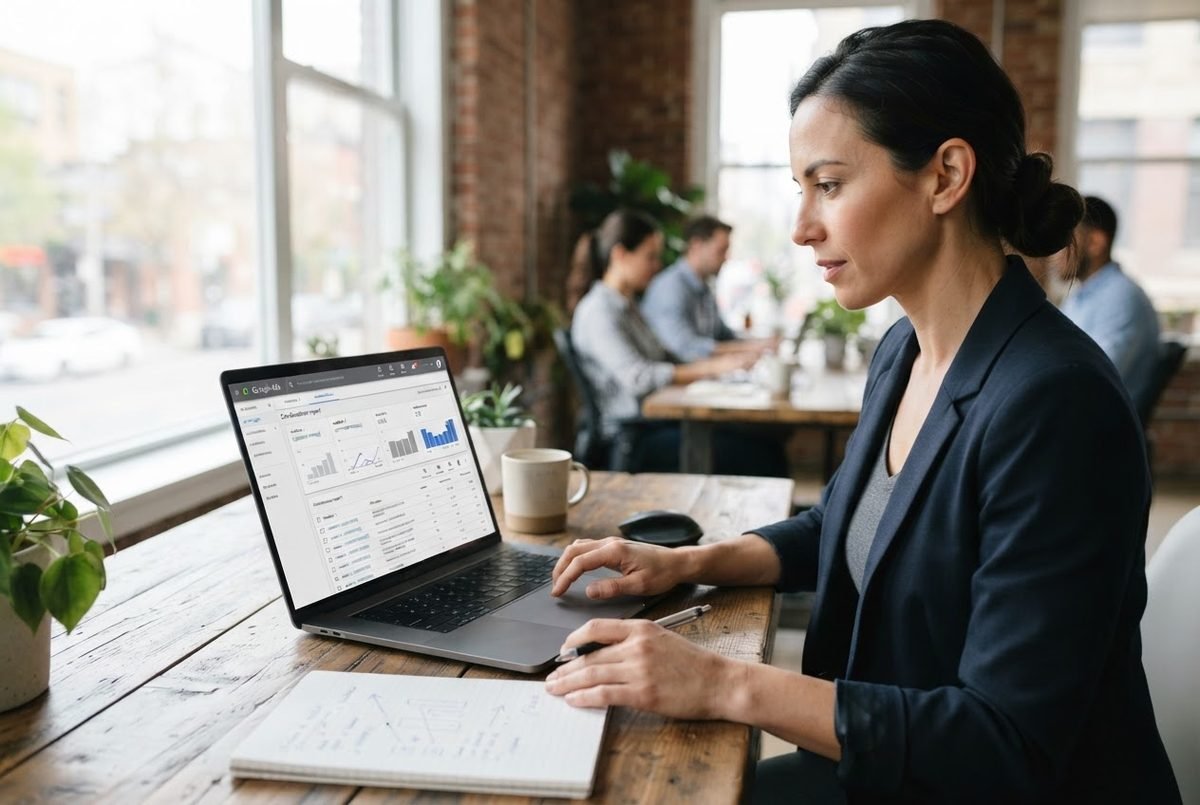
Google Search Console gives you a clear window into how your site performs in organic search. Its performance report shows impressions, clicks, click-through rate and average position for your pages. When you’re using AI to generate or optimise content, taking regular AI SEO optimization results screenshots of this report helps you see whether those changes are moving the needle over time.
For example, open the performance report, set the date range to the last 28 days, and compare it with the previous period. Take a screenshot of the total clicks and impressions. Then drill down to the Queries tab to see which search terms are driving traffic. A screenshot of that table, sorted by clicks, can reveal whether your AI-optimised pages are ranking for the terms you intended.
More recently, Google introduced a generative AI performance report inside Search Console. This report shows how your site appears in AI-powered search features, like the AI Overviews that summarise answers at the top of results. You can see impressions from generative AI, which pages get the most visibility, and filter by device or country. A screenshot of this report once a week gives you a quick health check on whether your content is being picked up by these new features. (If you want to prepare your content for AI-powered search features, check my guide on AI Overviews SEO.)
What’s the best way to track Google Ads AI?
If you’re running Google Ads, the AI is constantly testing different combinations of your headlines and descriptions. The combinations report in Google Ads shows you the most common headline, description and asset combinations shown, including whether a headline is serving frequently in the sitelink format. I suggest taking AI SEO optimization results screenshots of this report whenever you make a significant change to your ads, so you can see how the AI is using your copy.
I also keep an eye on the ‘Asset performance’ column in the ads overview. It rates each headline and description as ‘Best’, ‘Good’ or ‘Low’. A screenshot of that column before and after you swap out underperforming assets gives you a clear visual of improvement. Google also provides an Ad Strength metric for responsive search ads: advertisers who improve Ad Strength from ‘Poor’ to ‘Excellent’ can see 12% more conversions on average. A screenshot of your Ad Strength score before and after you improve your assets is a quick way to document that progress.
Google’s guidance on effective Search ads lists two further findings, and they are worth tracking separately. Advertisers that show a business logo and name with their Search ads see an average of 8% more conversions at a similar cost per conversion. Separately, UK-based tails.com combined broad match, Smart Bidding and responsive search ads to increase sign-ups in Germany from its generic Search campaigns by 182%, while increasing clicks by 258%. For help crafting better ad copy that works with AI, see my article on AI Content Optimization.
5 tips for better AI SEO screenshots
- Use the right tool for the job. For organic SEO, stick to Google Search Console. For paid campaigns, use Google Ads. Both tools are free and give you the most direct line to how Google sees your site. Avoid third-party dashboards that aggregate data, because they can introduce lag or misinterpretation.
- Capture the full context. Make sure your AI SEO optimization results screenshots include the date range, any applied filters, and the metric you’re tracking. I’ve seen plenty of images that are just a number with no date or filter visible. That’s useless a week later when you’re trying to remember what you were looking at.
- Focus on one metric per screenshot. Trying to cram every data point into one image makes it hard to spot trends. I prefer separate screenshots for impressions, clicks and CTR. If you need to show a trend, take separate screenshots of each metric over time and line them up side by side.
- Annotate what you changed. Add a note directly on the image or in the file name about the AI optimisation you made, such as ‘added new headline variants’ or ‘switched to broad match’. I use a simple text overlay or rename the file to include the change, like ‘2025-03-15_added-faq-schema.png’. This connects cause and effect.
- Store them in a dated folder. I keep a simple folder structure: year, then month, then campaign. That way I can quickly pull up a series of screenshots to show a client or my team how things have progressed. This makes it easy to build a before-and-after view for a monthly report. To make sure you’re covering all the bases, grab my AI SEO Checklist.
Tired of guessing with AI tools?
Learn a simple system for tracking AI results that actually makes sense for a small business.
Get the eBook nowWhy do my AI titles look different on Google?
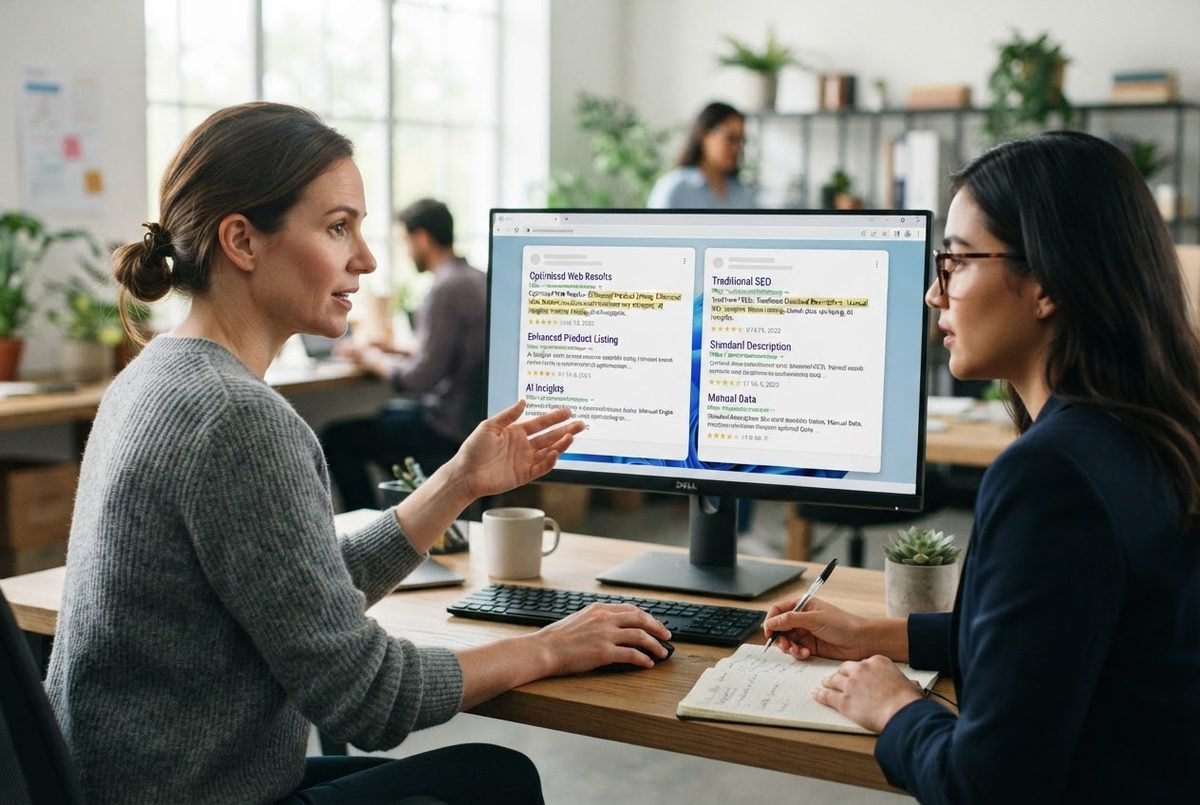
You might craft a perfect title tag, only to see something completely different in the search results. Google determines titles and snippets algorithmically, based on what it thinks will be most useful for the searcher. That’s not a bug; it’s by design. Taking a screenshot of the actual search result lets you compare what you intended with what Google is showing. Over time, a dated set of AI SEO optimization results screenshots helps you spot patterns. If the displayed title is missing your primary keyword or doesn’t match your page, you can adjust your on-page elements and monitor whether the snippet changes. Google may rewrite your title if it thinks another heading on the page is more descriptive, or if your title is too long. The screenshots are what turn that guesswork into something you can actually check.
Can screenshots alone prove SEO success?
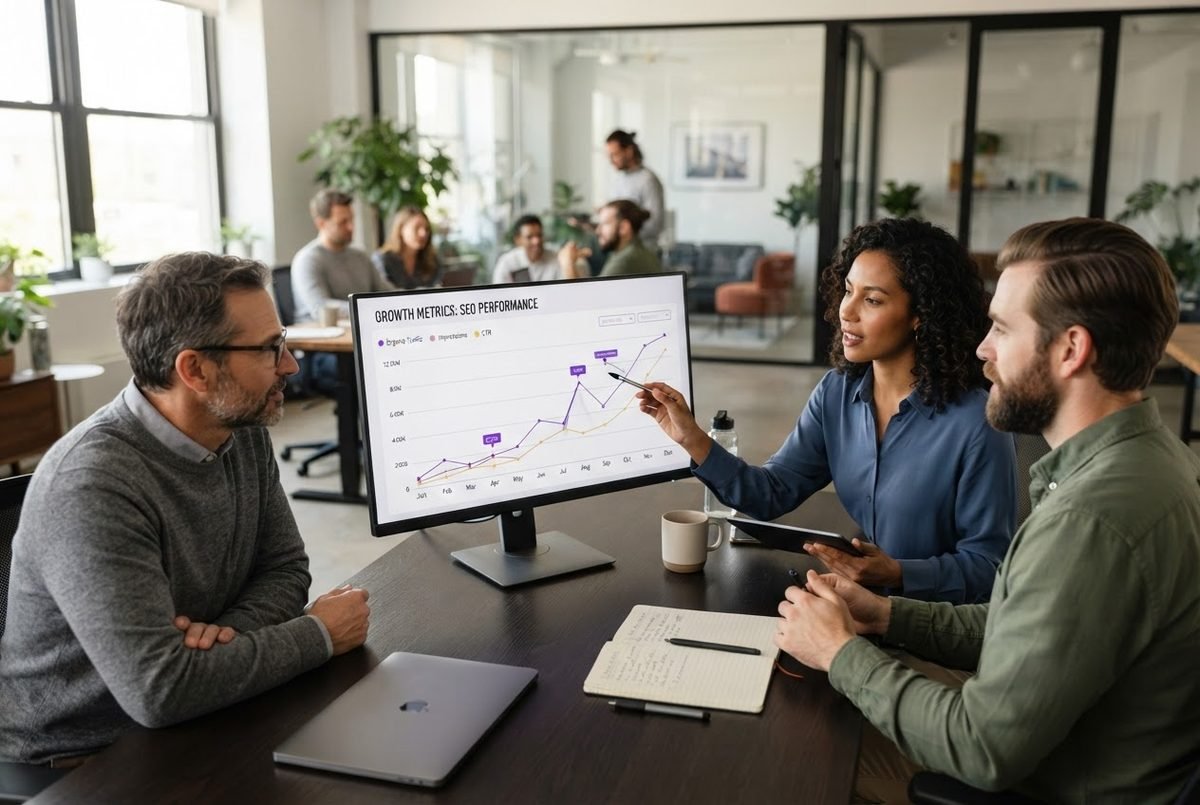
No, and I’d be wary of anyone who claims otherwise. A screenshot of an impressions chart might look impressive, but it doesn’t tell you whether those impressions turned into leads or sales. I’ve seen people celebrate a spike in impressions that turned out to be a seasonal fluke. Without conversion tracking, you’re guessing. Treat these images as a diary, not a verdict. Google Search Console’s own advice is to look for high impression, low CTR pages and check whether your titles and snippets actually answer the query. That is a far more useful test than a nice-looking graph. For a broader view of what moves the needle for small business SEO, read my piece on AI SEO for Small Business.
How do I use the combinations report?
Inside Google Ads, the combinations report shows you the most common headline, description and asset combinations that are serving, including any headlines that appear as secondary links. I find it helpful to screenshot this report after letting a campaign run for a few weeks. Look for headlines that are serving frequently in the sitelink format, since they’re getting extra visibility. If a headline you thought was secondary is showing up more often, it might be worth promoting to a primary position. You can also see which descriptions are pairing with which headlines, helping you understand the narrative Google’s AI is building. If you want to keep tighter control, Google continues to respect pinned assets, so anything pinned to headline position 1, position 2, or description position 1 will keep showing in that designated position when your ads serve. A regular habit of taking AI SEO optimization results screenshots turns a complex AI process into something you can actually review and improve.
Ready to stop chasing vanity metrics?
The eBook shows you how to connect AI efforts to real outcomes, step by step.
Send me the guideRelated reading
- AI Overviews SEO: Prepare Content for Google AI Search: Prepare your content for AI-powered search features
- AI Content Optimization: Improve Articles Without Hype: Craft better ad copy that works with AI
- AI SEO Checklist: Create Safer, More Useful Content: Cover all the steps with a simple checklist
- AI SEO for Small Business: Improve Visibility Safely: See what really moves the needle for small business SEO
Frequently asked questions
What’s the best tool for tracking results?
Google Search Console for organic results and Google Ads for paid campaigns. Both are free and provide the most reliable data directly from Google, without third-party filtering.
How often should I take screenshots?
I recommend once a week for active campaigns. For slower-moving organic SEO, every two weeks is enough to spot trends. Whatever you choose, keep the interval steady so your AI SEO optimization results screenshots stay comparable.
Can I show these to a client or boss?
Absolutely. Just make sure you add context: date range, what you changed, and what the screenshot is meant to prove. Raw numbers without explanation can confuse more than they clarify.
How do I know my AI work is helping?
Look for consistent upward trends in clicks and conversions over several weeks, not just a single spike. Screenshots help you visualise that trend and separate real progress from random noise.
Honest take
I think AI SEO optimization results screenshots are a practical habit, not a magic solution. They keep you honest about what’s happening, force you to look at the data regularly, and make it easier to explain your work to others. But they’re only as useful as the actions you take after you review them. I’d rather have a folder of dated screenshots and a clear log of changes than a fancy dashboard I never look at. Simplicity wins. Don’t obsess over collecting perfect charts. Focus on making small, testable improvements and documenting the results. That’s where the real value lives.
References
- Google. Your guide to AI-powered Search ads. 2023. https://support.google.com/google-ads/answer/12158267
- Google. How are you performing on Google? Search Console Help. https://support.google.com/webmasters/answer/10268906?hl=en
- Google. Generative AI performance report (Search). Search Console Help. https://support.google.com/webmasters/answer/16984139?hl=en
- Google. Driving better performance from AI-powered Search ads with increased asset flexibility. https://support.google.com/google-ads/answer/15967262?hl=en
- Google. Create effective Search ads. https://support.google.com/google-ads/answer/6167122
- Google. Missing features in Google Search results. Search Console Help. https://support.google.com/webmasters/answer/9079920?hl=en
Keep shipping useful messages,
Ray Baker